
The Device Binding Feature in DBS Card+ app
Protecting your account is our priority. To enhance the security of DBS Card+ app, we have introduced a device binding feature to enable identity authentication within the app.
Please log in to DBS Card+ app and complete the device binding process to ensure you can manage your finances safely and seamlessly with the app. You can check your credit card details through the "Show Card Details" function in the DBS Card+ app after device binding is completed.
Please refer to the frequently asked questions below to learn more:
Device binding is the process of linking your DBS Card+ account with your device to enable identity authentication when making transactions or managing your finances. After completing the device binding process, you can only use the same device to log in to DBS Card+ app and check your credit card details.
DBS Card+ app has launched the "Show Card Details" function which allows you to view your credit card information, such as the card number, expiry date and security code, without needing to carry the physical card. You can use this function after logging in to the Card+ app, completing the device binding process. Simply go to the "Cards" tab in the menu, select a card, tap "Show Card Details", and complete the SMS verification to view the card details. Please note that this function does not support American Express credit cards.
The device binding feature provides more secure identity authentication, preventing others from logging in to your DBS Card+ account using other devices, thereby reducing the risk of being hacked.
- When you log in to DBS Card+ app using a new device for the first time
- If you have already bound an old device, and you would like to log in to DBS Card+ app using a new device now
- After you delete and reinstall DBS Card+ app
- Once you have successfully reset your password
When you log in to DBS Card+ app using a new device, the system will prompt you to complete the device binding process. You need to scan your HKID (eIDV) and perform facial recognition to complete the binding process.
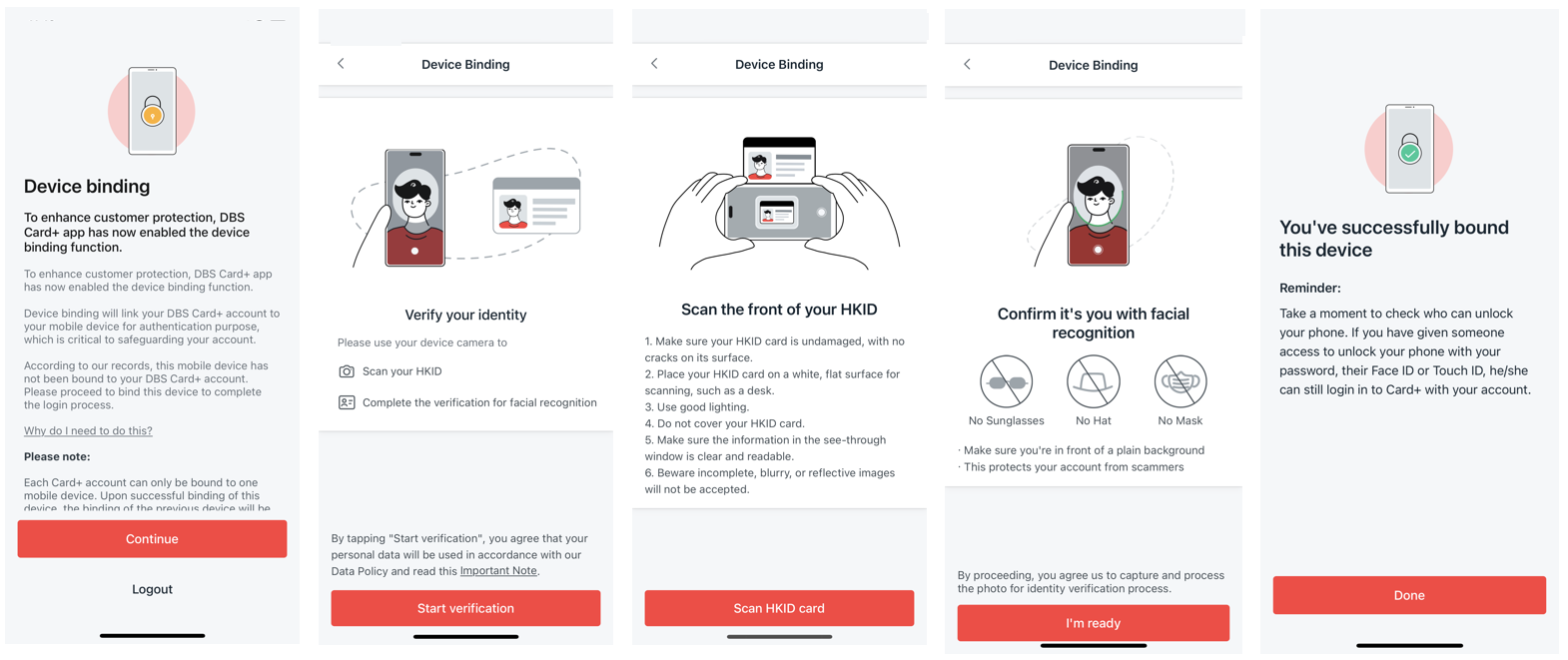
After completing the device binding process, you can access your credit card services in DBS Card+ app immediately.
You can download and log in to DBS Card+ app on your new mobile device, then perform the device binding process again. After completing the relevant verification process, the binding of the old device will be automatically removed. You can then use the new device to log in to and access DBS Card+ app.
Each DBS Card+ account can only be bound to one device.
If you lose the mobile device that is bound to your DBS Card+ account, please contact us immediately to unbind your device or remove the existing DBS Card+ account.
If you have linked your credit card to the eWallet on the lost device, please follow the instructions here.
To update your mobile phone number, please click here.
To update your email address, please contact us.
When you switch to a new device in DBS Card+ app, you need to complete the verification process using the One Time Password sent to you via SMS and perform the device binding process. Please make sure your mobile number is a valid Hong Kong phone number to receive the SMS. For details on updating your phone number, please refer to the instructions in Question 10.
If the system does not correctly display your ID card information after scanning, please scan it again. If you still cannot obtain the correct ID card information after multiple attempts, please contact us.
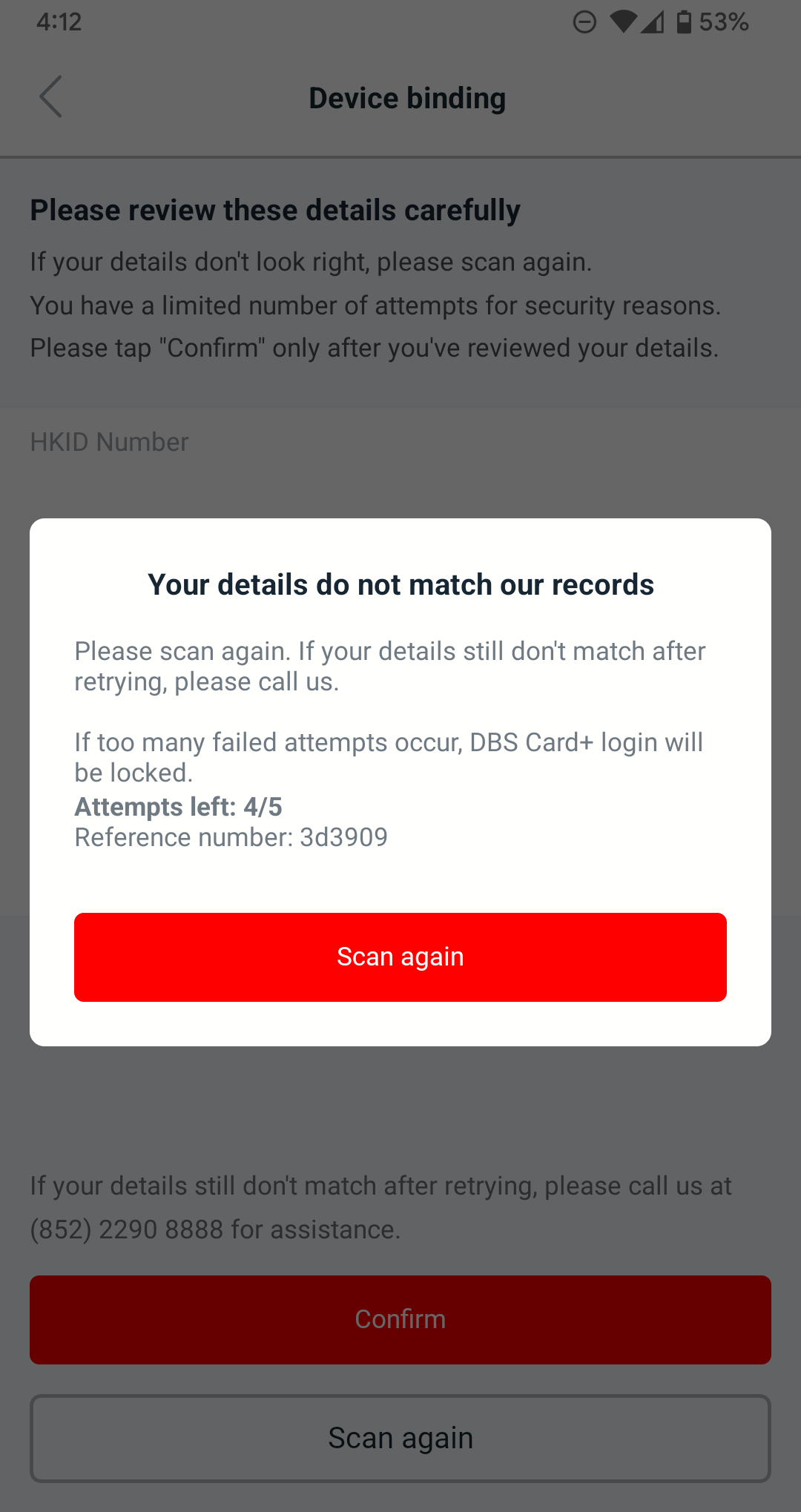
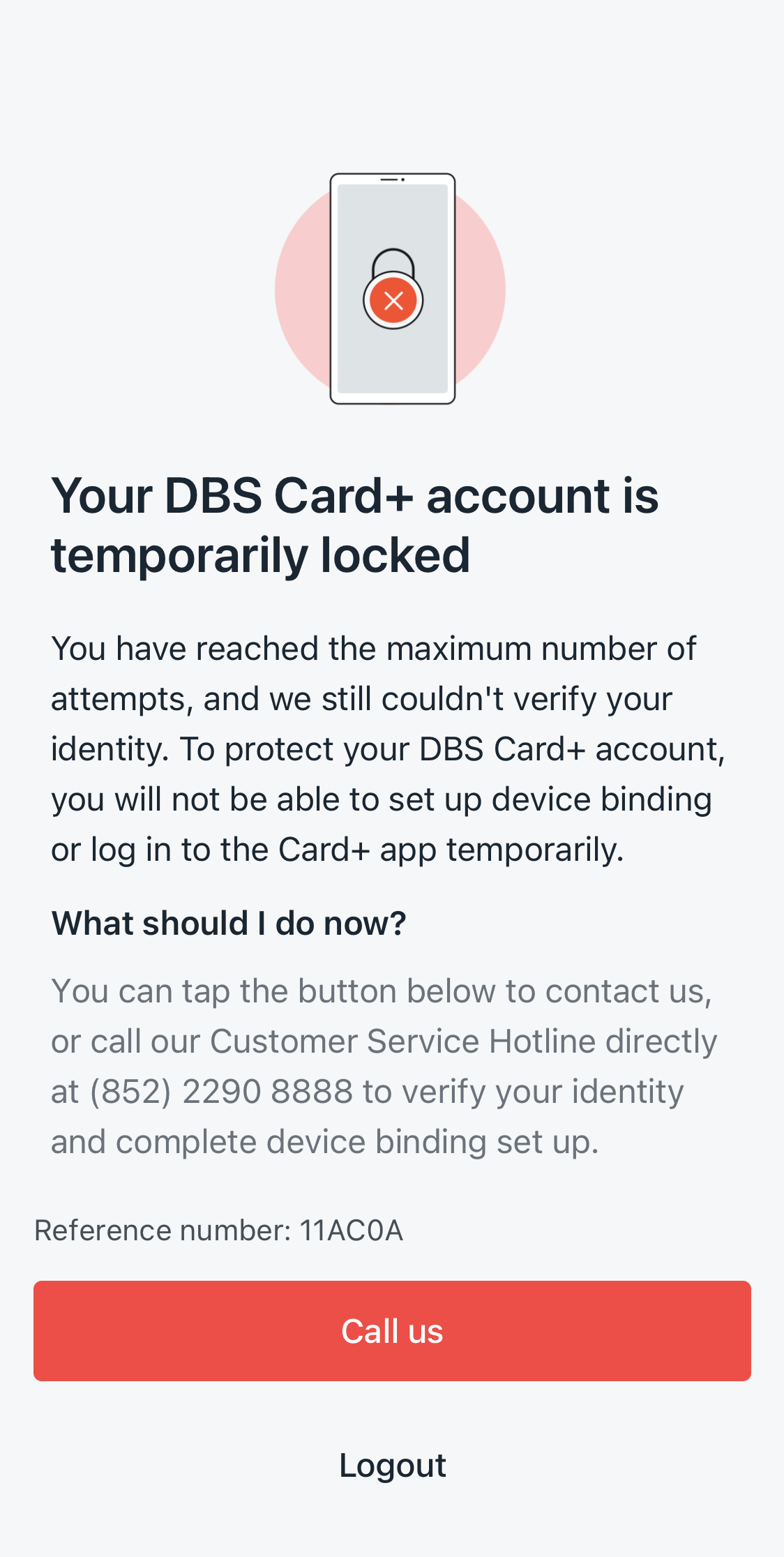
If your device binding attempts have reached the maximum limit, preventing you from retrying and logging in to the DBS Card+ app, please contact us immediately.
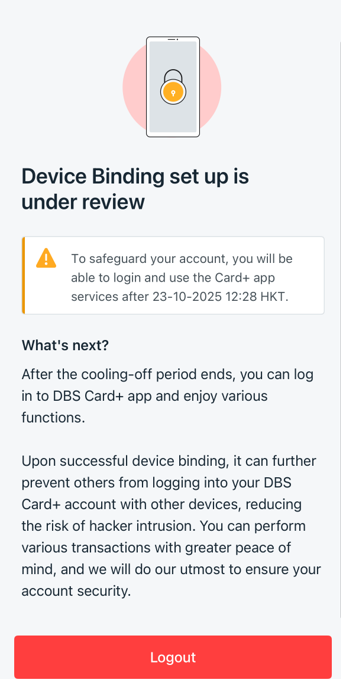
When you see this page on the DBS Card+ app, it means we are reviewing your binding record to ensure the security of your account. You will be able to log in to the DBS Card+ app after the 12-hour cooling-off period ends.
If any anomalies are found after review, we will unbind your device. In that case, please re-bind your device to complete identity verification.
To borrow or not to borrow? Borrow only if you can repay !
Related Information
We Welcome your Feedback
Need more help?
Contact support and we'll try to resolve your issue quickly.
Contact Customer Support